Creating an iPhone ringtone from a YouTube video (Windows)
Process
- Step 1: Download the video using yt-dlp: https://github.com/yt-dlp/yt-dlp
- Step 2: Convert the video to an M4R file using ffmpeg: https://ffmpeg.org/
- Step 3: Copy the video from your computer to your iPhone. For this guide we’ll use a Windows PC running iTunes.
Step 1: Downloading the video
For this example we’ll use this YouTube video, of the THX sound effect: https://www.youtube.com/watch?v=i43WNXnlGMs
$ yt-dlp -f bestaudio https://www.youtube.com/watch?v=i43WNXnlGMsStep 2: Convert video to M4R file
My version of ffmpeg doesn’t support M4R files, so I convert them to M4A, and then rename it to be M4R.
Run this command:
$ ffmpeg -i <video-file-name-from-previous-step> -c:a aac <ringtone-name>.m4aI’ve seen multiple sources that claim the ringtones won’t work unless their bitrate is 128 kbps. I have NOT found this to be the case, at least on my iPhone 12.
Once the file is created in the command above, rename the extension to be m4r.
Step 3: Transfer ringtone file from computer to phone
Make sure you have iTunes installed on your computer. Connect your phone to the PC via USB cable.
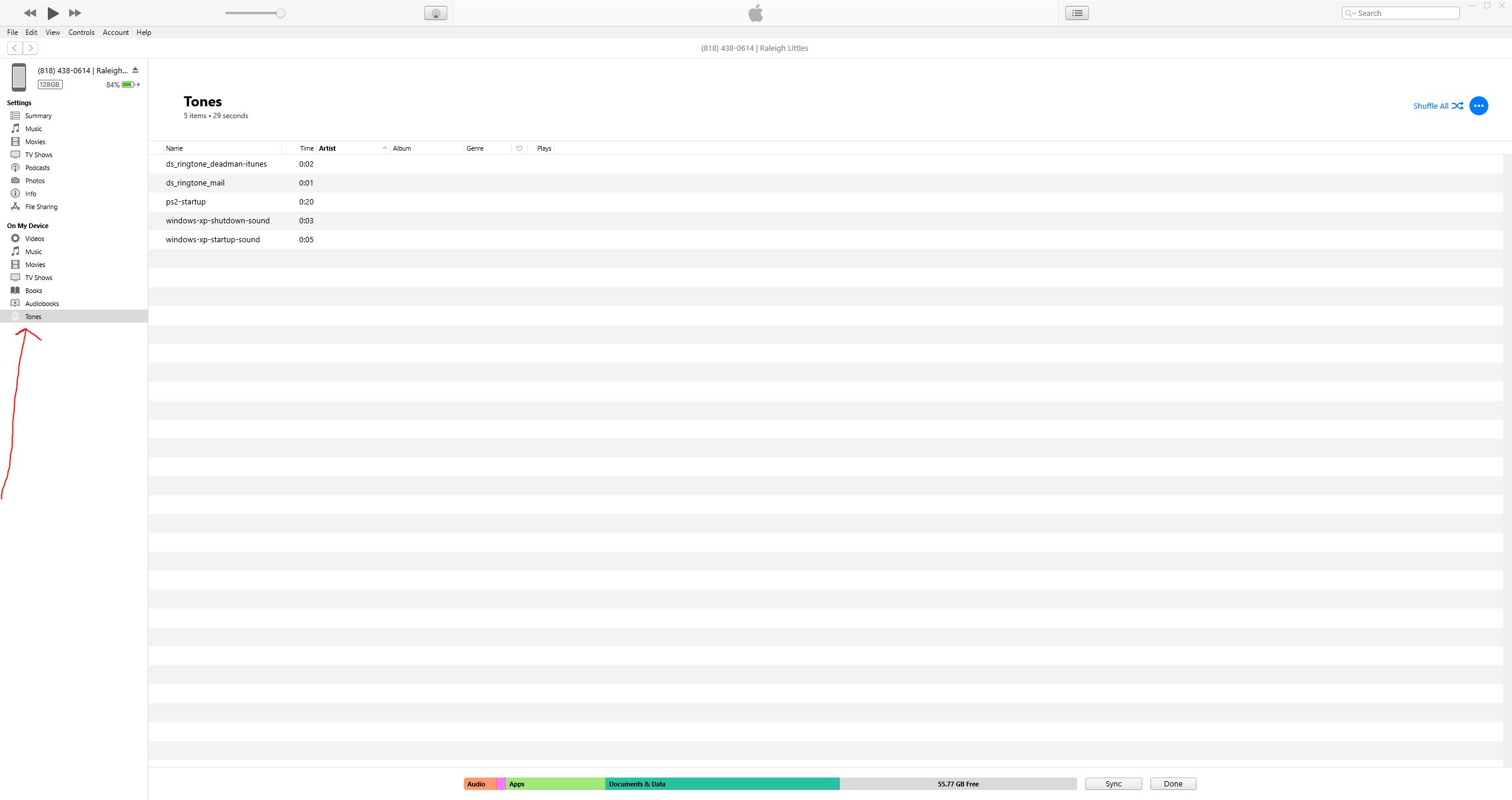
Under where your device appears on the sidebar, there should be a section called “Tones”. You will drag the ringtone file from the File Explorer into here. You can also copy and paste the file.
Leave a comment